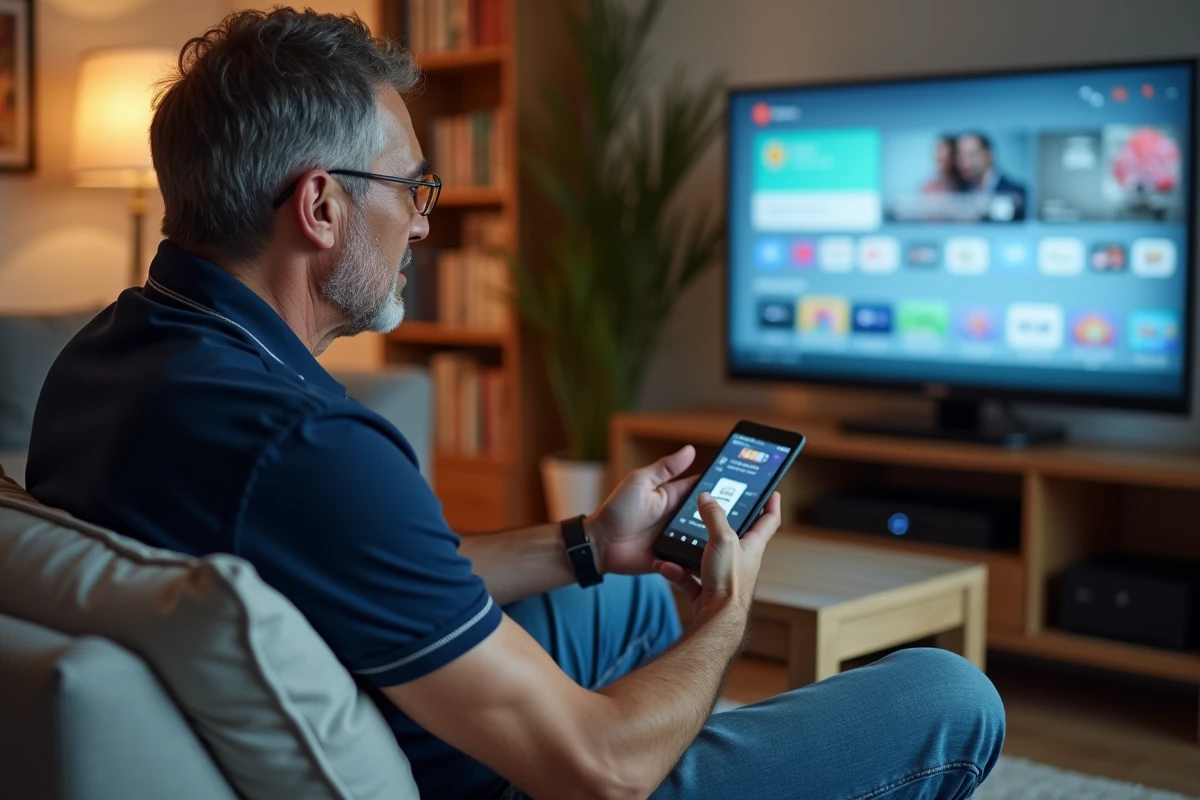
No Panasonic Smart TV offers Google Play Store natively, unlike other brands running on Android TV. The My Home Screen operating system, derived from Firefox OS, limits access to Google’s official app stores. However, there are solutions to bypass this restriction. Installing APK files via a USB drive, using alternative stores, or connecting external devices can expand app possibilities, despite the absence of the original Play Store.
Why Google Play Store is not always accessible on Panasonic Smart TVs
The reality becomes clear during the initial setup: there is no trace of Google Play Store on a Panasonic television. This is not a simple oversight, but a consequence of the brand’s choice with its My Home Screen interface. Unlike Android TV or Google TV, this system has never integrated Google’s app store, and it also does not allow direct installation of APK files. Even the most recent models remain on this locked trajectory.
The result? The accessible app catalog is significantly reduced compared to what some competing brands offer. It is impossible to find the richness of the Play Store, nor to tinker with the system to bypass this blockage. Naturally, many turn to alternatives to install Netflix, YouTube, or Spotify when these apps are not among the TV’s native options.
To help users, Panasonic invites them to install applications via Panasonic Apps Market. This official solution provides a safe environment but remains much more limited in the number of applications compared to the Play Store. Some users may be satisfied with this, while others will seek to go further to enrich their connected experience.
Detailed steps to install Google Play Store or alternative applications on your TV
Since installing APK files or Android apps is impossible on My Home Screen, sometimes a change of method is necessary. One of the simplest and most effective ways is to connect an Android TV box or a similar device to an HDMI port on the TV. This type of device instantly provides access to the Android TV universe, the Play Store, and all its updates. You can then install apps like Atlas Pro ONTV, Amazon Prime Video, or France 24, without being limited by the television’s own system.
The procedure is easy to follow; here are the steps to take:
- Connect the Android TV box to an available HDMI input on your Panasonic Smart TV.
- Ensure that the box is connected to the Internet, then log into your Google account according to the displayed instructions.
- Next, access the Google Play Store via the box and proceed to install the applications of your choice.
What changes with this solution? The TV remote still serves for power or volume, while the box’s remote allows navigation through Android and its menus. There is no need to adjust anything on the Panasonic system: the Android experience overlays, it does not replace anything. Today, this is the most practical and versatile way to expand the uses of a Panasonic Smart TV.
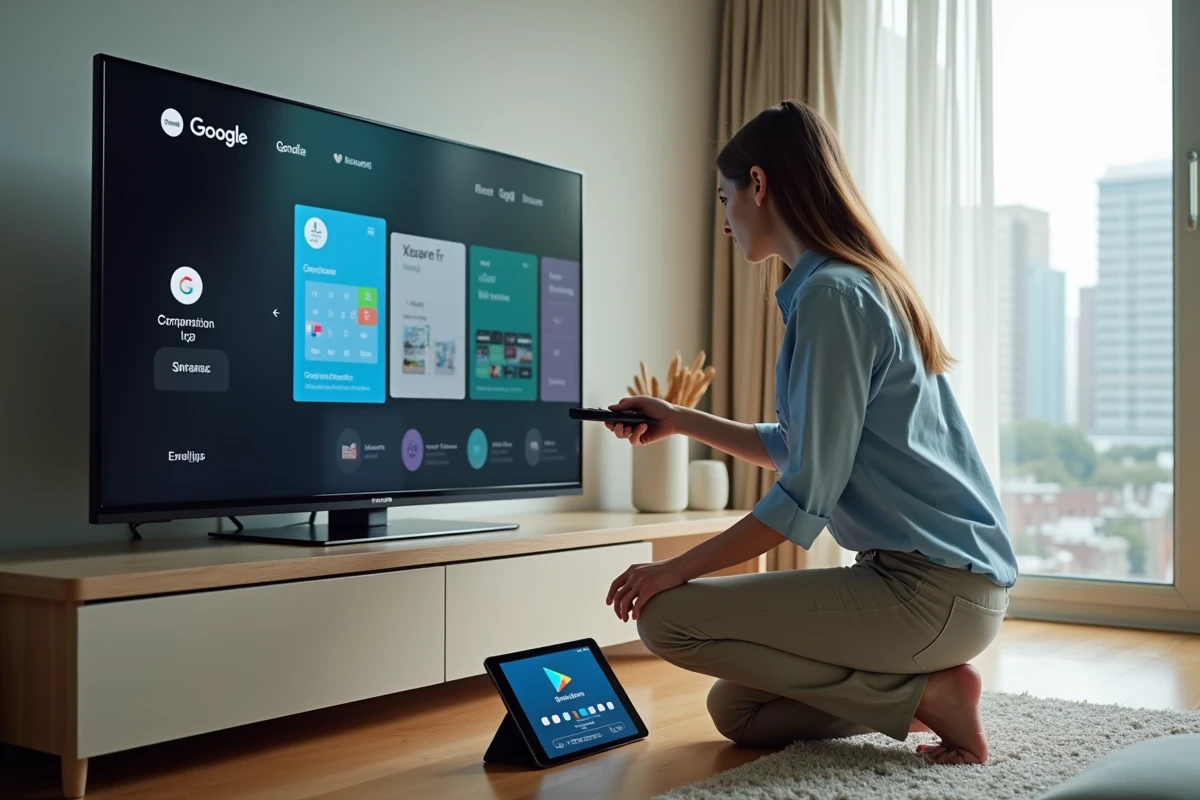
Frequently asked questions: installing APKs, compatibility, and tips to fully enjoy your Panasonic Smart TV
Some users still hope to find a hidden setting to install APKs or download Android apps on their Panasonic Smart TV. But the My Home Screen system is not designed for that: it is incompatible with APKs. Digging through advanced menus or connecting a USB drive does not allow bypassing this lock. On these TVs, only the apps available on the Panasonic Apps Market are directly accessible.
To add applications that are not included in the official offering, pairing with an Android TV box emerges as the simplest and safest solution. Streaming, video on demand, or online music then become accessible without restriction. Just plug it in and install what you want via the Android interface of the box; no complex manipulation is required, and your TV is at no risk of software failure.
Compatibility and performance: what you need to know
There are several points to watch to optimize the experience with a Panasonic Smart TV:
- The quality and stability of the Internet connection heavily influence IPTV streaming or viewing on-demand content.
- The memory space, both of the TV and the Android box, determines the number of installable applications.
- Most recent Panasonic Smart TVs offer the possibility of using a voice assistant like Google Assistant or Alexa to control searches, video playback, or even connected objects in the home.
Also, remember to regularly check for software updates: this affects stability, as well as compatibility with recent services or premium applications. As needs evolve, it becomes increasingly relevant to adapt your setup to enjoy maximum possibilities. Ultimately, transforming your Panasonic Smart TV into a real multimedia platform often depends on a well-utilized HDMI port.